A guide to proving outcomes of RISE, AID, and other funded programs with digital badges. Program office adoption guide
Kolleges
Product Receive & share

No app needed to receive.
Share to in one tap

Recipients are notified the moment a badge is issued,
and can download it or add it to LinkedIn.
Every shared badge carries the issuer and program name.

1
Issue
Admin issues now or on a schedule
2
Notify
KakaoTalk and email delivery
3
Verify identity
Kakao sign-in
4
Receive
View the badge with no app or sign-up
5
Share
PDF·PNG·QR, LinkedIn profile
Receive & share features

From receiving to sharing,
exactly as recipients see it

Receive without signing up, save, and share to LinkedIn and social.
Wherever it goes, it links back to the same verification page.

These screens recreate the actual Kolleges admin and recipient views.
Names, dates, and numbers are illustrative; the badge and certificate images are real ones issued through Kolleges.

01 · KakaoTalk & email

Notified via KakaoTalk and email the moment it’s issued

Tap Get badge in the KakaoTalk message and confirm with Kakao sign-in to receive it.
No app install or sign-up needed.

Inbox1
KOSMES · Kolleges9:41 AM
Your certificate has been issued as a digital badge
Gildong Hong, tap the button below to view and save your badge.
View badge
KakaoTalk
KKolleges
New KakaoTalk message
[KOSMES] Gildong Hong, your certificate has been issued.
· Credential: Youth Startup Academy Graduation Confirmation
· Issued: 2026.07.18
Get badge
Verify to get your badge
Confirm instantly with Kakao sign-in.
NameGildong Hong010-****-5678
Verify and receive
My badges
Youth Startup Academy Graduation Confirmation
KOSMES · 2026.07.18
Valid digital badge
Add to LinkedIn profile
Share
Save PDF
Open verification page ›
9:41▮▮▮
Sample screen
A recipient getting a KakaoTalk message, verifying identity, and viewing it in My badges · Issued by KOSMES Seoul Youth Startup Academy
  • No app, no sign-up
    Recipients view and share badges without creating an account.
  • Personal comments
    Add a comment for each recipient on the email tab of the credential preview.
  • Scheduled issuance
    Schedule issuance for the graduation ceremony, and notifications go out right on time.
02 ⁠· PDF⁠·PNG⁠·QR

Download as PDF, save as an image, verify by QR

Choose the certificate PDF, badge PNG, or QR code from the download menu.
Scanning the QR code opens the verification page.
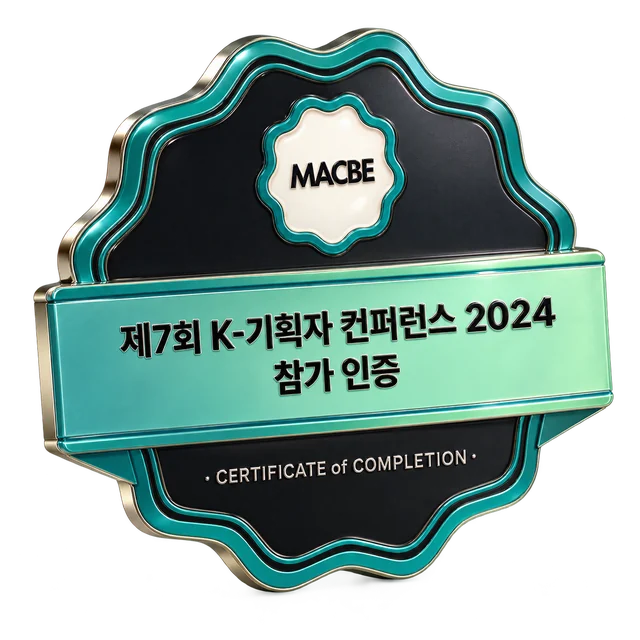
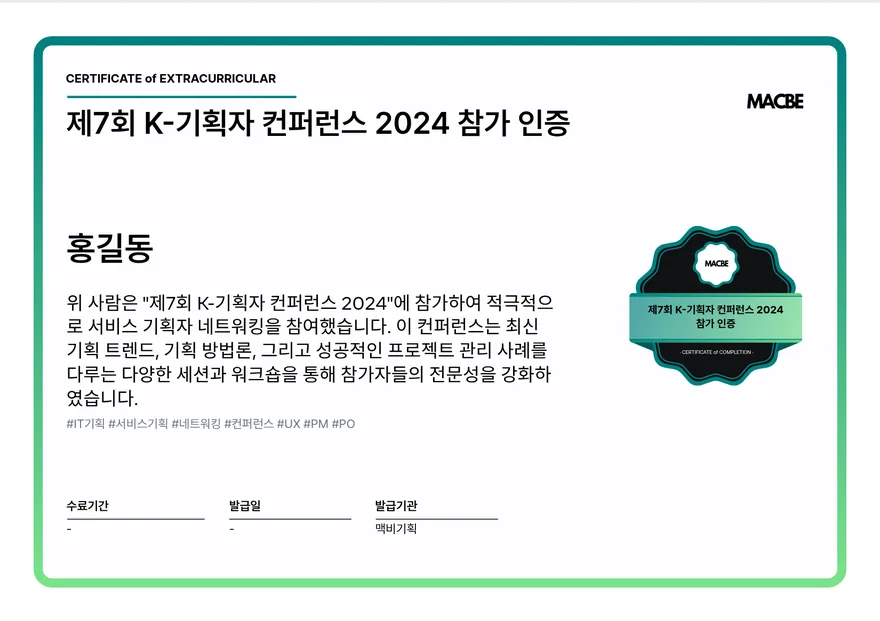
KollegesMy badgesGildong Hong
7th K-Planner Conference 2024 Attendance
MacBe · Issued 2024.11.30Valid
Issue codeKL-202411-mcb7k2ExpiresNoneStandardsOpen Badges 3.0
DownloadSharesAdd to LinkedIn
Certificate PDF
Badge image PNG
QR code
PDFK-Planner-Conference_Attendance.pdf
QR code
Scan to open the verification page
kolleges.net/c/kl-202411-mcb7k2
Certificate PDF saved
Sample screen
A recipient downloading from My badges · Issued for the MacBe K-Planner Conference
  • Certificate PDF
    Save as PDF and print wherever paper copies are required.
  • Badge image (PNG)
    Post the badge image straight to social media, résumés, and profiles.
  • QR code & unique link
    Wherever it’s opened, it leads to the same verification page showing the issuer and criteria.
03 · LinkedIn

One button: Add to LinkedIn profile

The credential name, issuer, credential ID, and URL are added to the profile automatically.
Recruiters verify it through the same link.
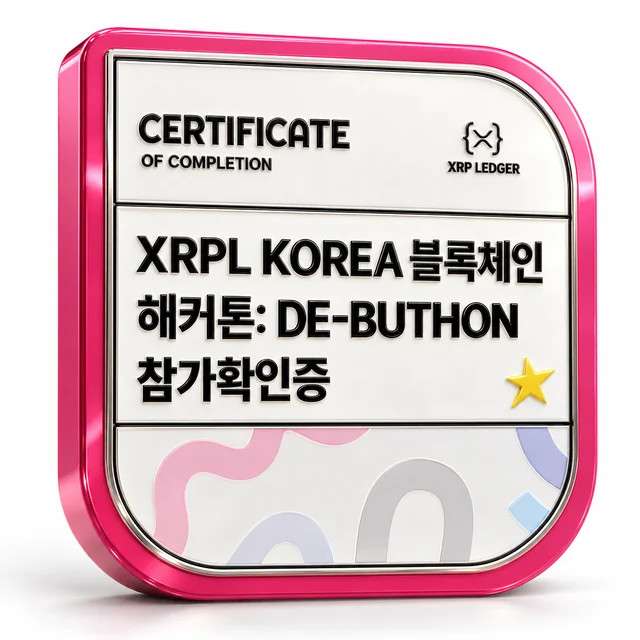
KollegesMy badges
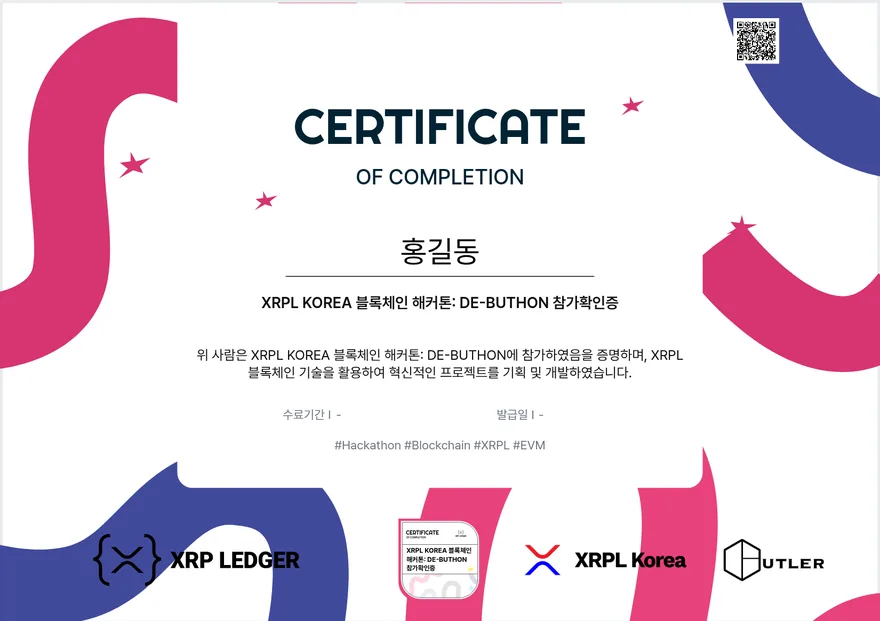
XRPL KOREA Blockchain Hackathon: DE-BUTHON Participation
XRPL Korea · Gildong Hong
Add to LinkedIn profile
SharePDF
LinkedIn · Add license or certification
Name *
XRPL KOREA Blockchain Hackathon: DE-BUTHON Participation
Issuing organization *
XRPL Korea
Issued on
Sep 2025
Credential ID
KL-202509-xrp4d8
Credential URL
https://kolleges.net/c/kl-202509-xrp4d8
Save
Profile · Licenses & certifications
XRPL KOREA Blockchain Hackathon: DE-BUTHON Participation
XRPL Korea
Issued Sep 2025 · Credential ID KL-202509-xrp4d8
Show credential
kolleges.net/c/kl-202509-xrp4d8
This is a valid digital badge
Issued by XRPL Korea
Recruiters check the issuer and details through the same link.
Sample screen
A recipient adding a credential to their LinkedIn profile · Issued for the XRPL Korea hackathon
  • Added in one click
    The button on the verification page adds it to the Licenses & certifications section.
  • Your institution and program, front and center
    Every shared badge shows the issuer and program name.
  • Linked to the verification page
    Clicking the badge on a profile opens the verification page with the issuer and criteria.
04 · Auto-share to social

Issued badges post to social media automatically

Turn on auto-share in sharing settings, and the badge and verification link are posted without recipients lifting a finger.

Sharing settings
Auto-share to socialPosts the badge and verification link once issued
Post textI earned the 7th UMC Challenger Certificate badge #UMC #DigitalBadge
Copy link
Email
QR code
Other shares
LinkedIn
KakaoTalk
Copy link
G
Gildong Hong
Just now · Auto-shared
Posted
I earned the 7th UMC Challenger Certificate badge.
7th UMC Challenger Certificate
Issued by NE(O)RDINARY
kolleges.net/c/kl-202502-umc7c
Sharing resultsSampleLast 30 days
Auto-shared posts
0
Post → verification views
0
Share by channel
LinkedIn0%
KakaoTalk0%
Other shares0%
Copy link0%
Sample screen
An admin setting share channels and reviewing results · Issued by NE(O)RDINARY UMC · Numbers are illustrative
  • Turn auto-posting on or off
    Auto-share can be switched on or off in sharing settings.
  • Badge and verification link in every post
    Viewers go straight from the post to the verification page.

See what recipients receive in a 15-minute demo

We’ll walk through an issuance, verification, and sharing setup that fits your institution.