
all on one screen
Design a template, then upload a list or set completion rules to issue in one go.
Co-issuance with partner institutions and Korean/English credentials are managed on the same screen.
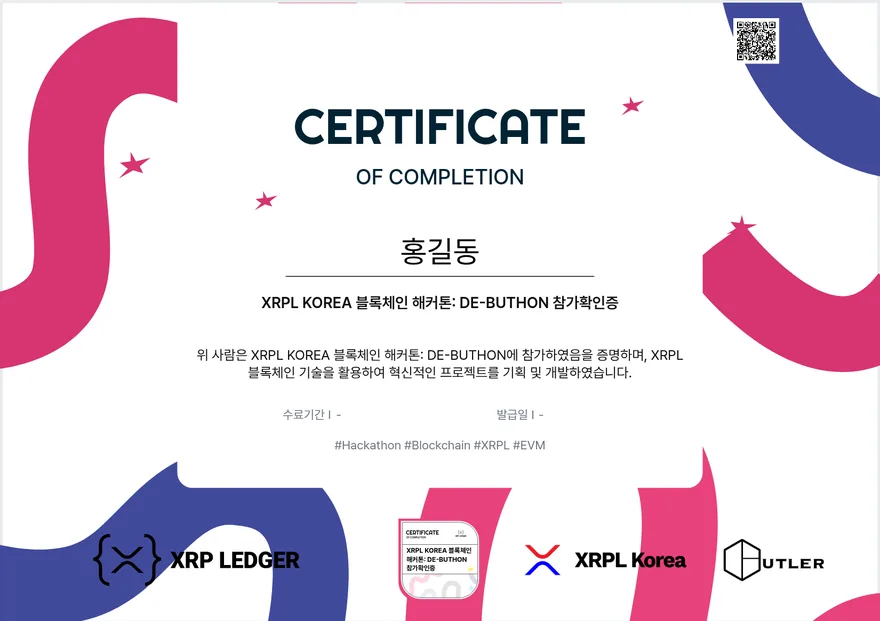
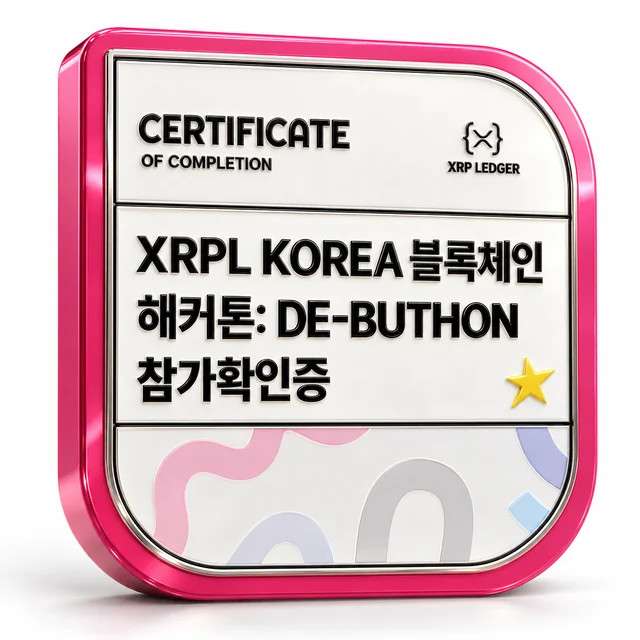
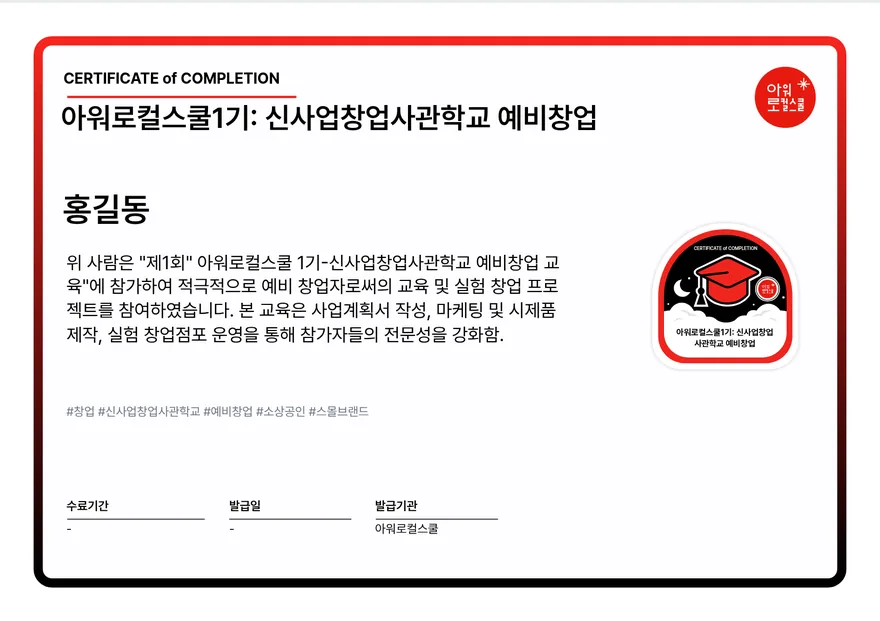

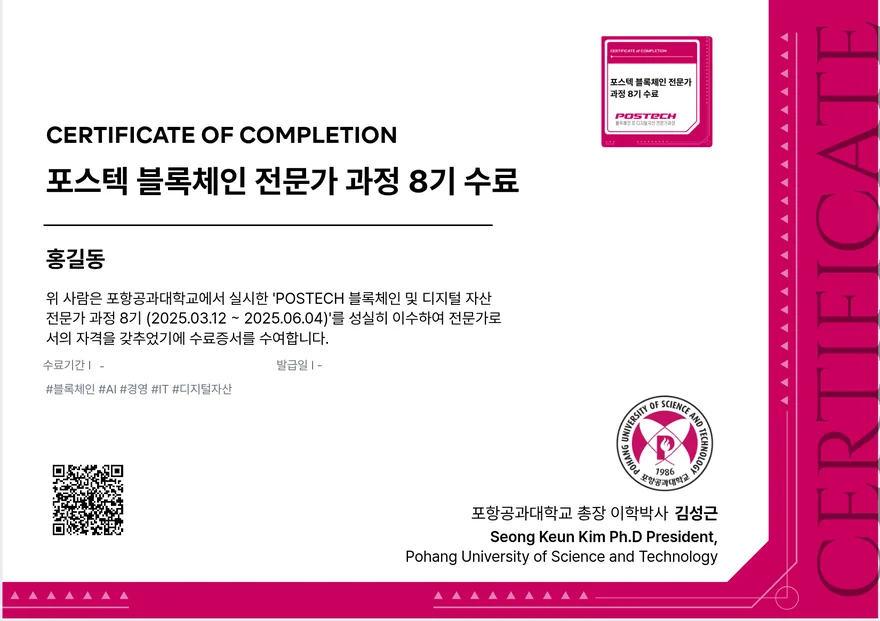

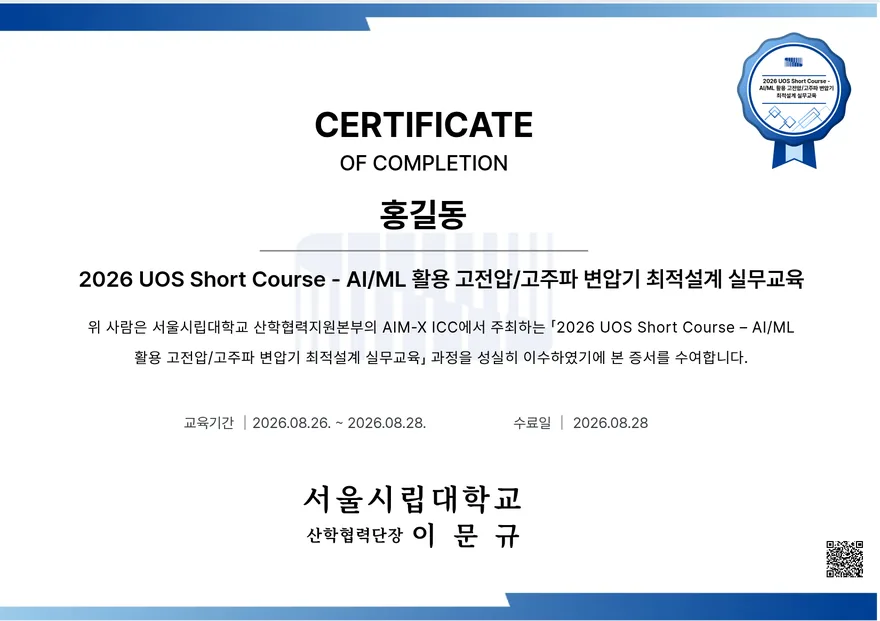

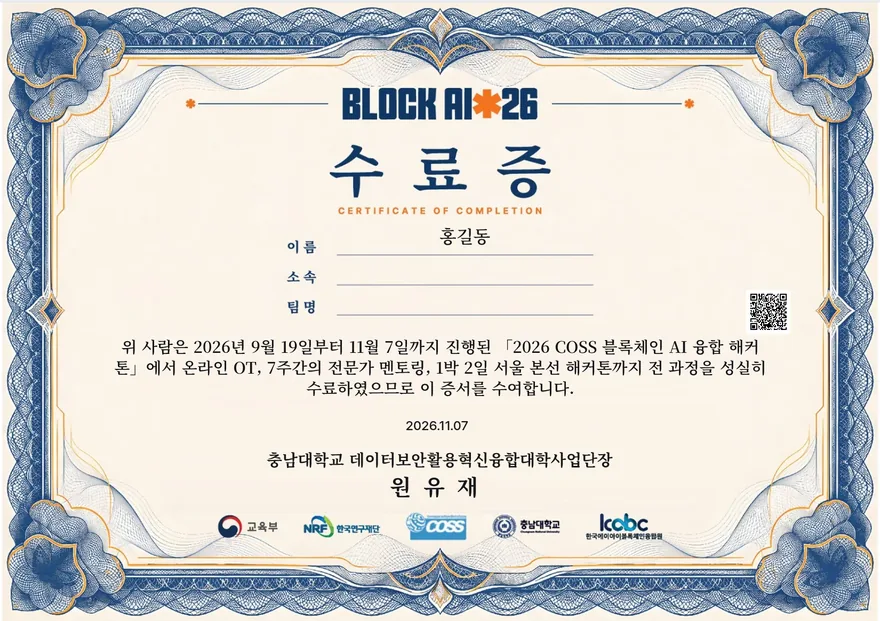

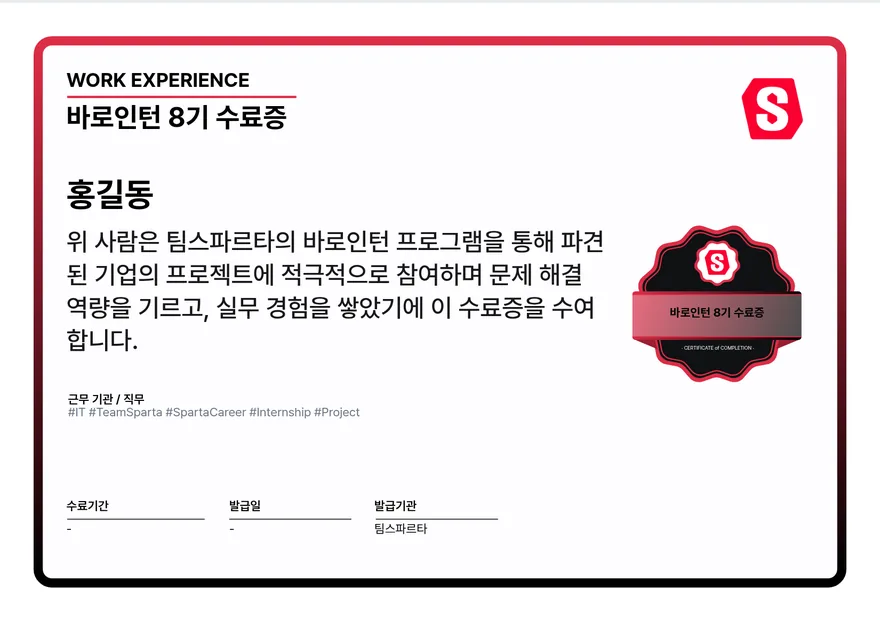

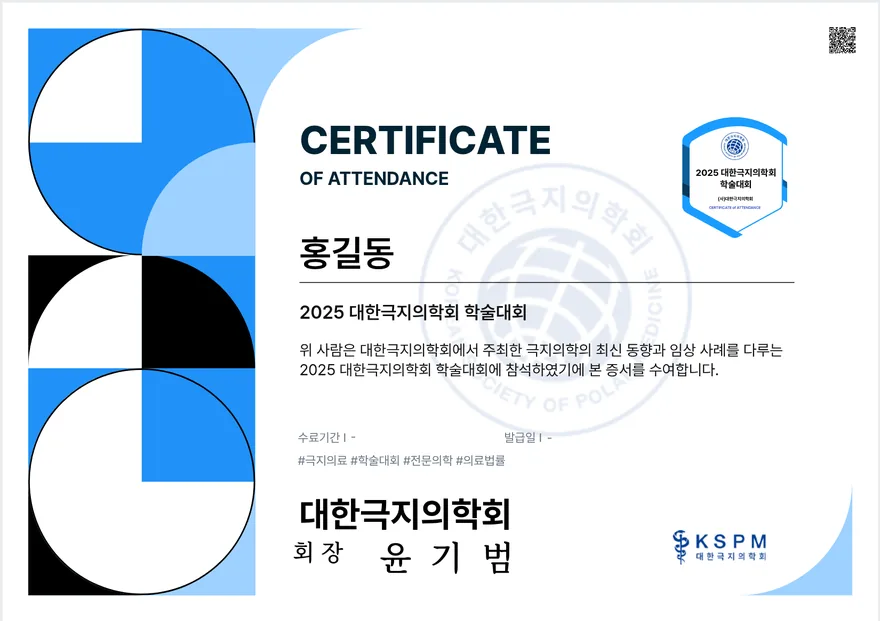


Design, issue,
and co-issue
This is the real flow in the Kolleges admin. Designs and issuance settings you create once carry over to the next cohort.
These screens recreate the actual Kolleges admin and recipient views.
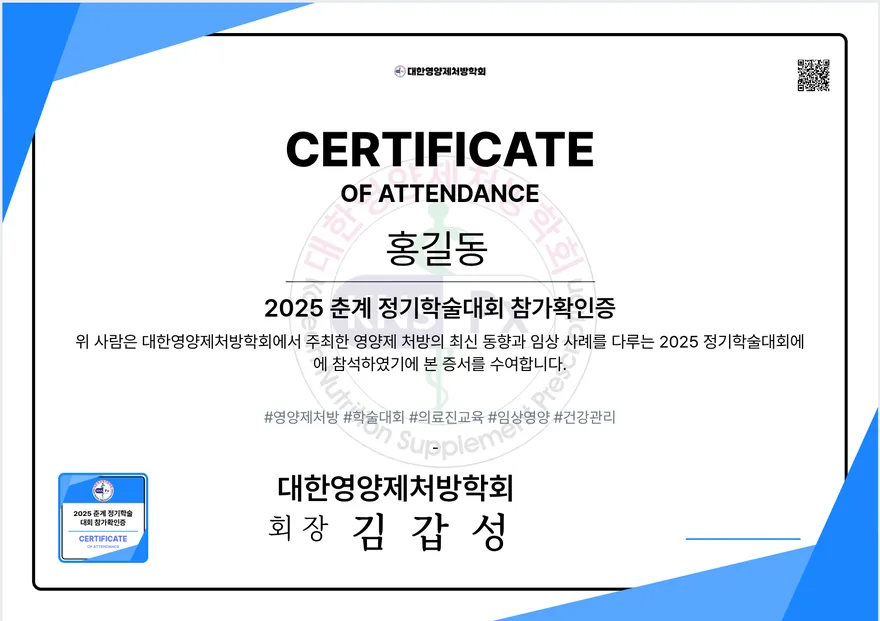
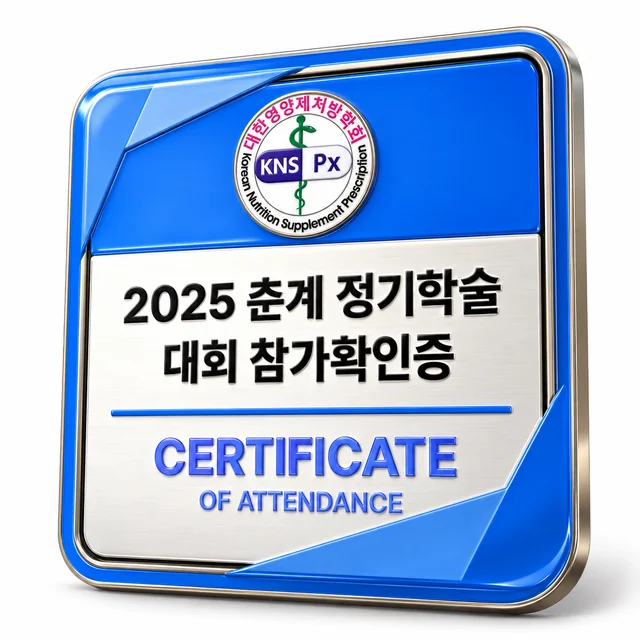
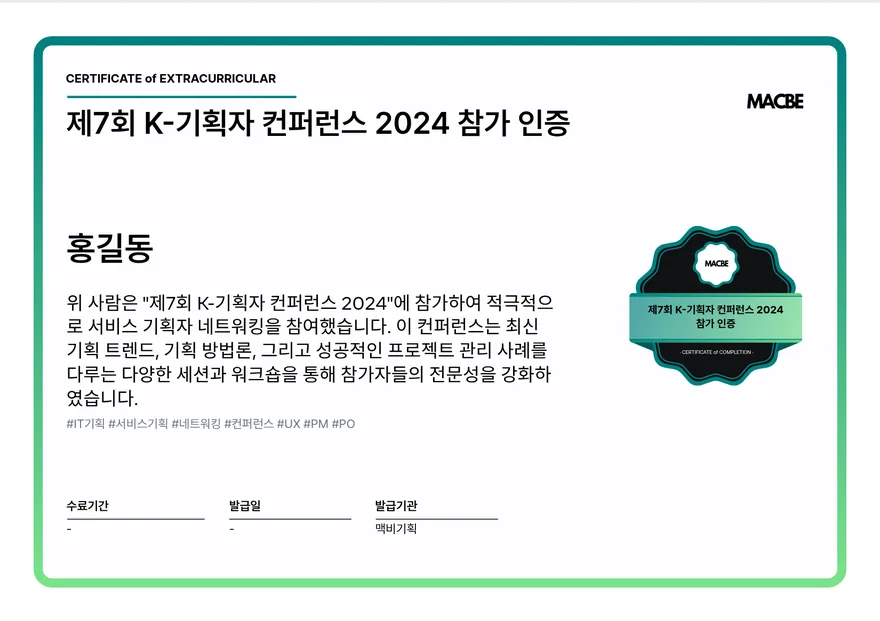
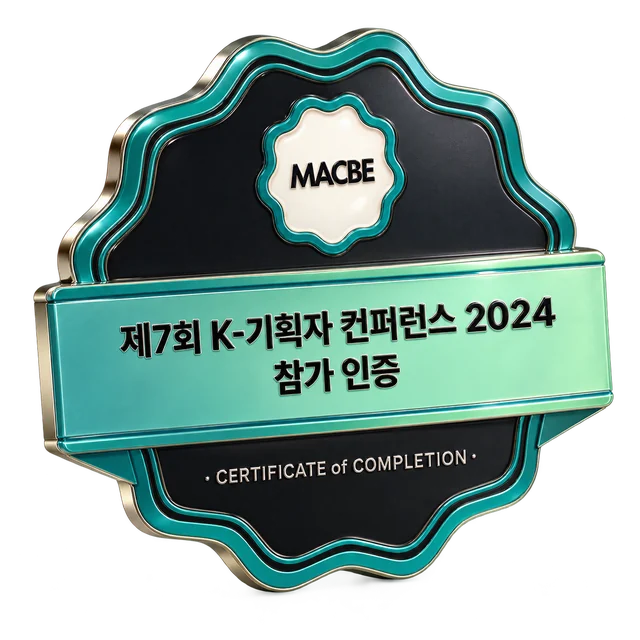
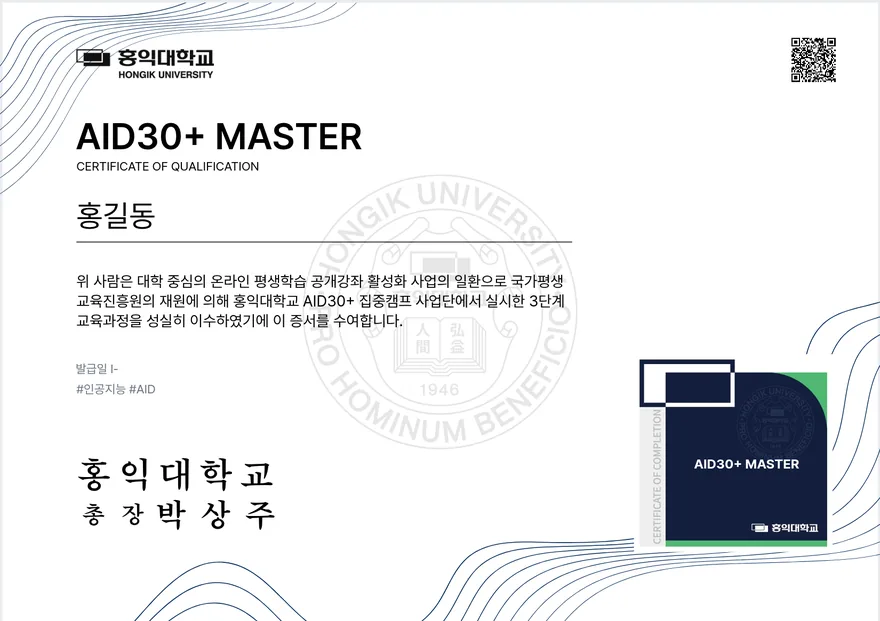
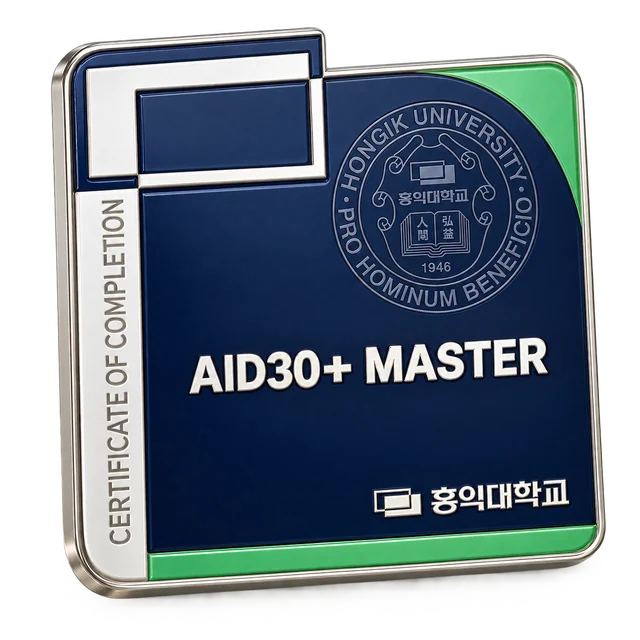
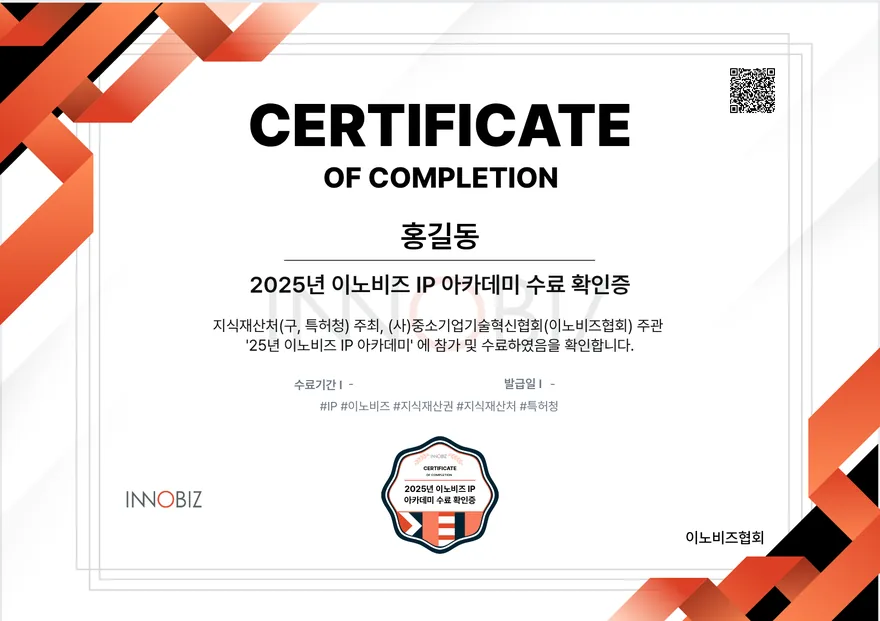
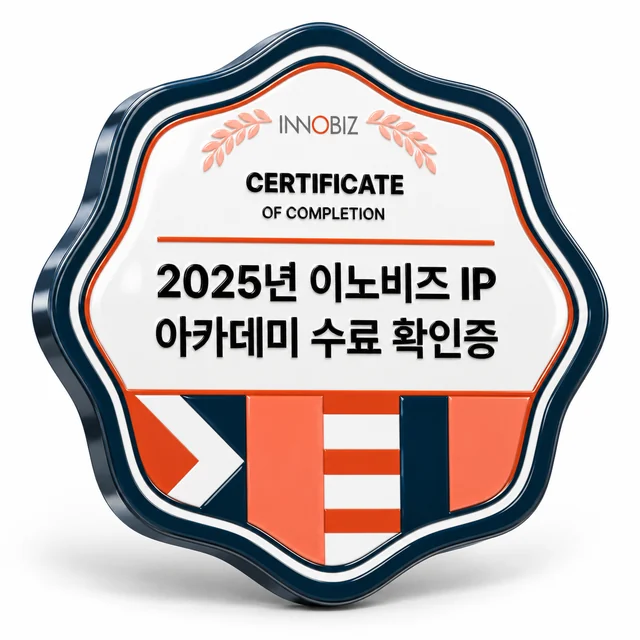
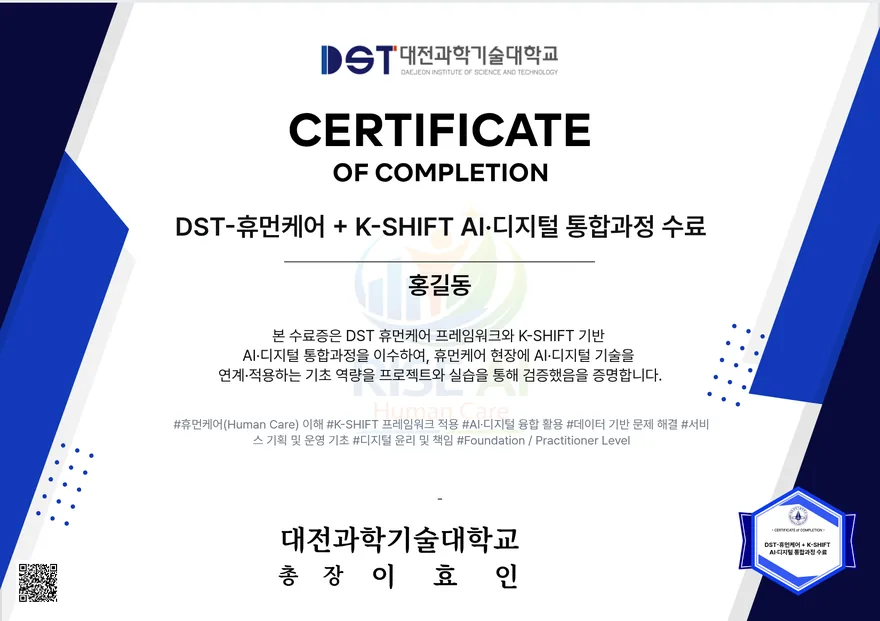
Names, dates, and numbers are illustrative; the badge and certificate images are real ones issued through Kolleges.
From a template to your own design
Apply attributes to a template, and each recipient’s name and course title fill in at issuance.
Saved designs are ready to reuse for the next cohort.
- Personalized with attributesPlace attributes like [Credential.Title] and [Recipient.Name] on the canvas, and they fill in for each recipient at issuance.
- Reuse every cohortSaved designs live in your certificate and badge design list, ready for the next cohort.
- Issued badges stay as they areDesign changes apply only to future issuance; badges already issued keep their original design.
Upload a list, issue in one go
Load a CSV or Excel list and each recipient’s details fill in automatically.
Check the issuance options and count, confirm, and everything is issued at once.
- Upload a template fileUpload a list with name, email, and phone columns to register everyone at once. You can also add custom columns for fields on the credential.
- Issue to existing membersMembers you’ve issued to before can be selected as recipients right away.
- Preview, then issueCheck what recipients will see on the credential and email tabs, then choose Issue now or Schedule.
Meet the criteria, get the credential automatically
Set attendance, assignment, and exam thresholds per course,
and learners who meet them receive their credential and notification right away.

- Different rules per courseSet completion rules such as attendance, assignments, and exam scores for each course. The settings carry over to the next cohort.
- Connect the data you haveConnect via LMS completion data, CSV upload, or API calls, whichever fits your environment.
- No missed credentials, notifications includedRecipients who meet the criteria are issued right away and notified via KakaoTalk and email.
One badge, issued jointly by multiple institutions
Add institutions in the Issuers menu, then select them as co-issuers in the advanced settings when creating a credential. Co-issuers appear alongside the lead issuer on the verification page.
- Add an issuerIn your workspace’s Issuers menu, register partner institutions with + Add issuer.
- Choose co-issuers in advanced settingsAdd them with + Select co-issuer on the advanced settings tab of Create credential, and they appear on the credential with the lead issuer.
- Independent issuing, central oversightEach institution issues on its own, while headquarters sees the full picture.
See the real issuance screens in a 15-minute demo
We’ll walk through an issuance, verification, and sharing setup that fits your institution.